Confirm the system
This procedure is for the applicable openR link / openR Android Auto mirroring update. It is not a conversion from R-LINK 2, R-LINK Evolution or Media Nav.
Renault Iraq · Al-Bilad Al-Mutahida
Guidance for the Android Auto smartphone-mirroring update on compatible openR link / openR systems without connectivity. Confirm applicability with Renault Iraq first.

This procedure is for the applicable openR link / openR Android Auto mirroring update. It is not a conversion from R-LINK 2, R-LINK Evolution or Media Nav.
Use an empty USB-C drive of at least 8 GB formatted as FAT32. Create a folder named USB_UPDATE at its root and copy the supplied ZIP file into it without extracting it.
Follow the vehicle handbook and on-screen instructions while parked. Keep the drive connected throughout installation. Activate the new version when prompted and check the completion message after restarting.
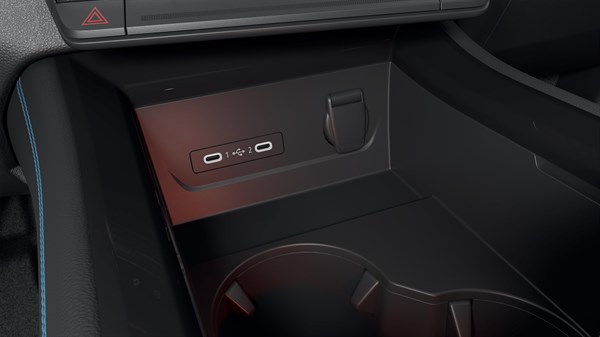
Illustrative system image. Vehicle equipment may differ.
Equipment, smartphone compatibility, maps and connected services vary by model, production date, software version and market. Ask Renault Iraq to confirm what is available for your vehicle.
Check the system name in your vehicle handbook or multimedia settings.
Confirm the vehicle specification, phone model and software version.
Follow guidance for that system, or call 6677 for assistance.
Check the multimedia settings and the handbook supplied with your vehicle. If unsure, send the system name or a photo of its home screen to the service team.
Availability depends on the installed equipment, software and market. A software update does not automatically add hardware-dependent functions.
Please confirm availability in Iraq with the local team before subscribing or purchasing.
French-market information is a technical reference. Local equipment and service availability must be confirmed with Renault Iraq.
For the applicable procedure, allow up to 10 minutes. Connected vehicles may receive the update remotely where supported.
Download the existing Renault update package ↗Al-Bilad Al-Mutahida, the official dealer for the French Renault brand in Iraq. Have your model, year, system name and software version ready when contacting the team.